Using the Autodesk 3ds Max Submitter
To use the Deadline Cloud submitter for 3ds max, please ensure your Farm is configured with a 3dsmax capable fleet, and have the submitter installed. Also, please log into the Deadline Cloud Monitor or provide AWS credentials via a configuration profile for Deadline Cloud access.
Refer to the fleet-host-configuration.md and installation.md to configure the fleet and 3dsmax application.
Submit a job
To submit a job from 3ds Max to Deadline Cloud
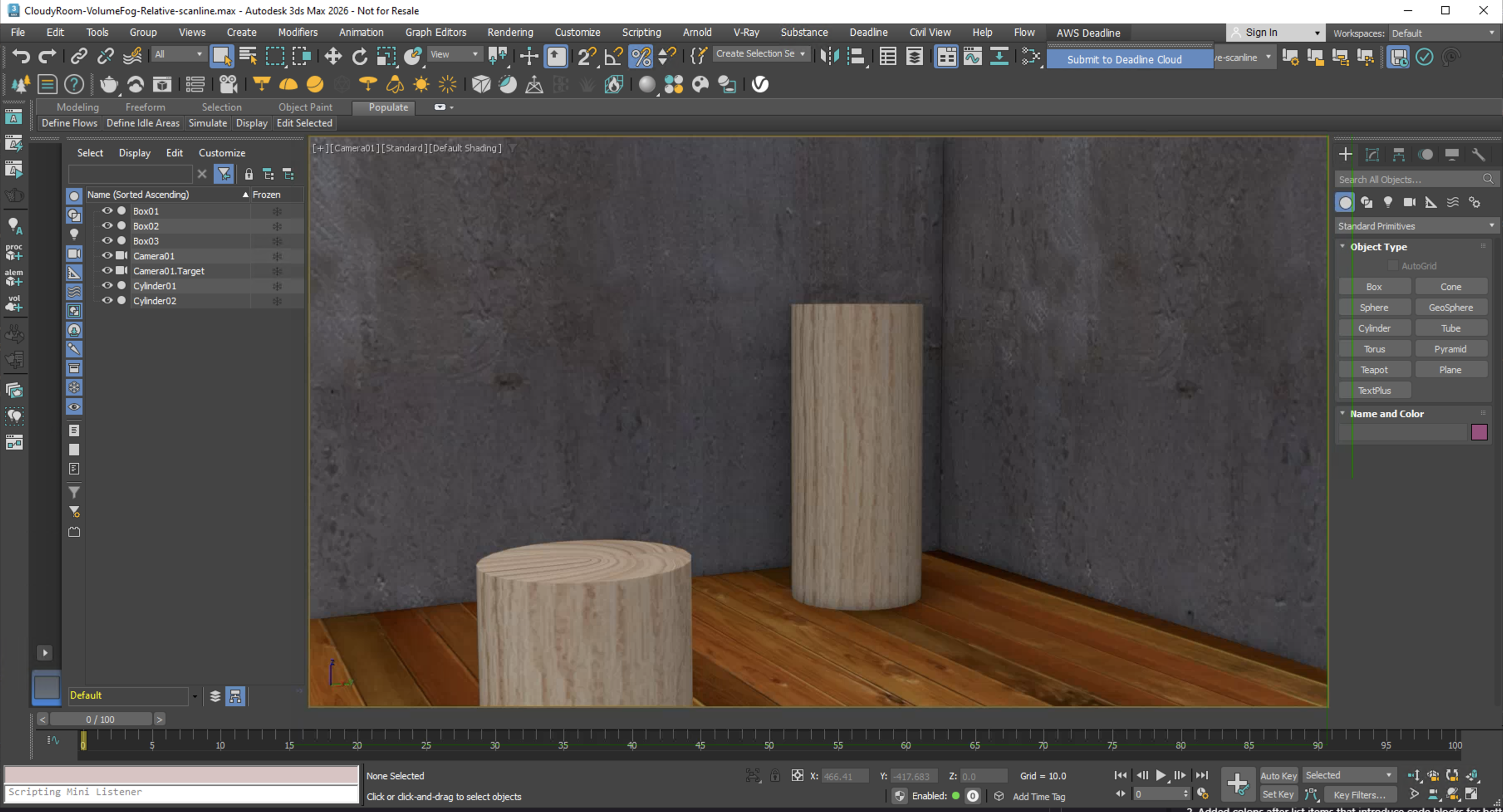
- Save your 3ds Max file.
- In 3dsMax's menu, choose Deadline Cloud. Refer to the image above for reference.
- Use the tabs in the dialog to customize your job.
- (Optional) To export a job's associated files to your job history directory without submitting it, choose Export bundle.
- A job bundle is a group of files that defines a job. For more information, see Open Job Description templates for Deadline Cloud.
- Choose Submit and follow the prompts to send your job to Deadline Cloud.
Shared Job Settings
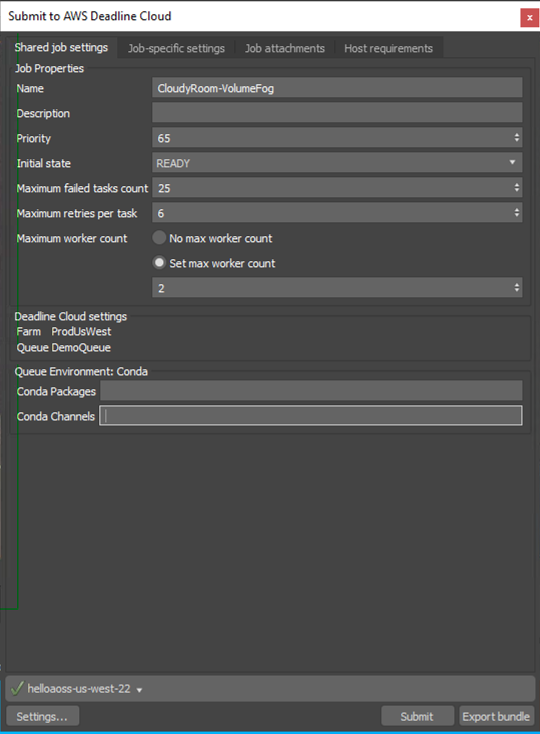
Settings that apply to the entire job:
- Farm Selection - Choose which farm your job will render on
- Queue Selection - Select the specific queue within your chosen farm
- Job Name - Give your render job a descriptive name
- Job Description - Add optional details about your render job
- Priority - Set job priority for queue management
- Initial State - Control whether the job starts immediately or remains paused
- Max Failed Tasks Count - Maximum number of tasks that can fail before the job is marked as failed
- Max Retries Per Task - Number of times a failed task will be retried
- Max Worker Count - Maximum number of workers that can work on this job simultaneously
- Conda Packages - Note that this must be EMPTY as 3dsmax does not use Conda.
- Conda Channels - Note that this must be EMPTY as 3dsmax does not use Conda.
3ds Max Specific Settings
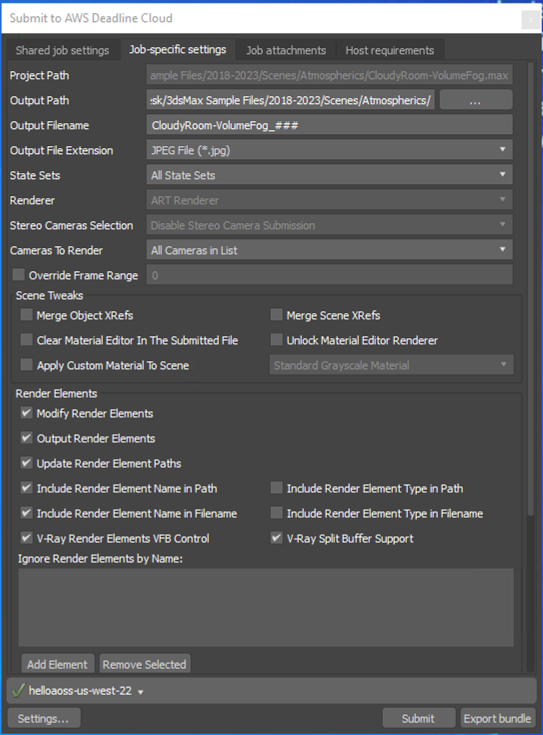
Settings specific to 3ds Max rendering:
- Project Path - The 3ds Max project path (automatically detected)
- Output Path - Directory where rendered images will be saved
- Output Filename - Base name for rendered image files. Use ### to represent the frame number.
- Output File Extension - File format for rendered images (e.g., .exr, .png, .jpg)
- State Sets - Select which 3ds Max State Set to use for rendering
- Renderer - Current renderer from 3ds Max render settings (read-only)
- Stereo Cameras Selection - Choose stereo camera rendering options if stereo plugin is available
- Cameras To Render - Select specific cameras or render all cameras
- Override Frame Range - Optionally override the scene's frame range with custom values
Scene Tweaks
Options to modify the scene during submission:
- Merge Object XRefs - Merge external object references into the scene
- Merge Scene XRefs - Merge external scene references into the scene
- Clear Material Editor In The Submitted File - Remove materials from the material editor
- Unlock Material Editor Renderer - Unlock the material editor renderer
- Apply Custom Material To Scene - Apply a custom material to all scene objects
Render Elements
Render Elements in 3ds Max are specialized output passes that separate different aspects of the rendered image into individual components for advanced compositing and post-production workflows. These elements allow artists to isolate specific rendering components such as diffuse color, specular highlights, shadows, reflections, and material properties, enabling precise control and adjustment in post-production without re-rendering the entire scene. Deadline Cloud for 3ds Max provides comprehensive render elements support with advanced path management, V-Ray integration, and automatic configuration during rendering.
Enhanced render elements support with the following options:
- Modify Render Elements - Enables any changes to render element settings for this scene. If selected, the following options will be applied at render time.
- Output Render Elements - Control Enable/Disable render elements output
- Update Render Element Paths - Automatically update output paths during submission
- Include Name/Type in Path - Add render element names or types to output directory paths
- Include Name/Type in Filename - Add render element names or types to output filenames
- V-Ray Specific Settings - VFB control and split buffer support for V-Ray render elements
- Ignore Render Elements by Name - Exclude specific render elements from output
For information about the other submitter tabs, see the AWS Deadline Cloud guide for using a submitter.
Monitoring your jobs
You can monitor job progress using the Deadline Cloud monitor. For more information, see the AWS Deadline Cloud guide for using the monitor.
Known Limitations
Maximum number of state sets / batch views per job
The Open Job Description (OpenJD) specification limits a job to a maximum of 50 job parameters. Because the submitter creates per-step parameters for each state set or batch view, this places a practical ceiling on how many can be included in a single job submission.
The submitter uses a fixed set of global parameters, plus per-step parameters that scale with the number of state sets or batch views:
| Parameter group | Count |
|---|---|
| Base parameters (scene file, error checking) | 2 |
| Camera parameter (when a specific camera is selected) | 0 or 1 |
| Render element parameters (when scene has render elements) | up to 10 |
| Per state set in Default mode (frames, output path/name/format, resolution) | 6 each |
| Per batch view in Batch Render mode (frames, output path/name/format, resolution, camera, scene state, preset, pixel aspect) | 10 each |
The practical limits are:
| Submission mode | Render elements | Specific camera | Max per job |
|---|---|---|---|
| Default | No | No | 8 state sets |
| Default | No | Yes | 7 state sets |
| Default | Yes | No | 6 state sets |
| Default | Yes | Yes | 6 state sets |
| Batch Render | No | N/A | 4 batch views |
| Batch Render | Yes | N/A | 3 batch views |
Submitting a job that exceeds 50 parameters will fail with a validation error. If you need to render more state sets or batch views than the limit allows, split them across multiple job submissions.
Getting help
- Contact AWS Support
- For bugs, please log an issue to our github (Requires a GitHub account)
- For feature requests or improvement ideas, visit our discussion forum