Using the Autodesk Maya Submitter
To use the Deadline Cloud submitter for Maya, please ensure your Farm is configured with a Maya capable fleet, and have the submitter installed. Also, please log into the Deadline Cloud Monitor or provide AWS credentials via a configuration profile for Deadline Cloud access.
Refer to the installation.md to install the Maya submitter.
Submit a job
To submit a job from Maya to Deadline Cloud
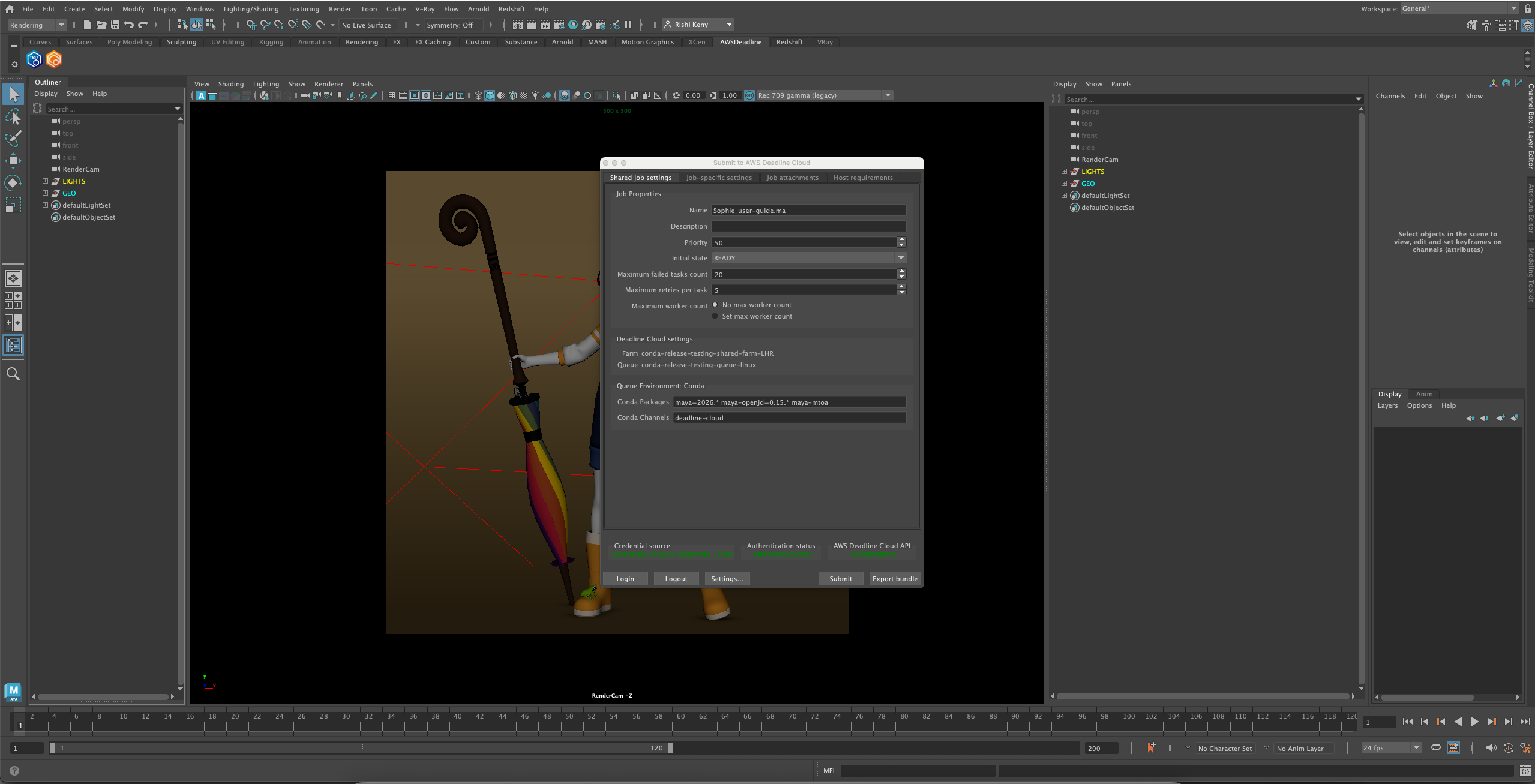
- Save your Maya file.
- In Maya's shelf, click the Deadline Cloud button. Refer to the image above for reference.
- Use the tabs in the dialog to customize your job.
- (Optional) To export a job's associated files to your job history directory without submitting it, choose Export bundle.
- A job bundle is a group of files that defines a job. For more information, see Open Job Description templates for Deadline Cloud.
- Choose Submit and follow the prompts to send your job to Deadline Cloud.
Shared Job Settings
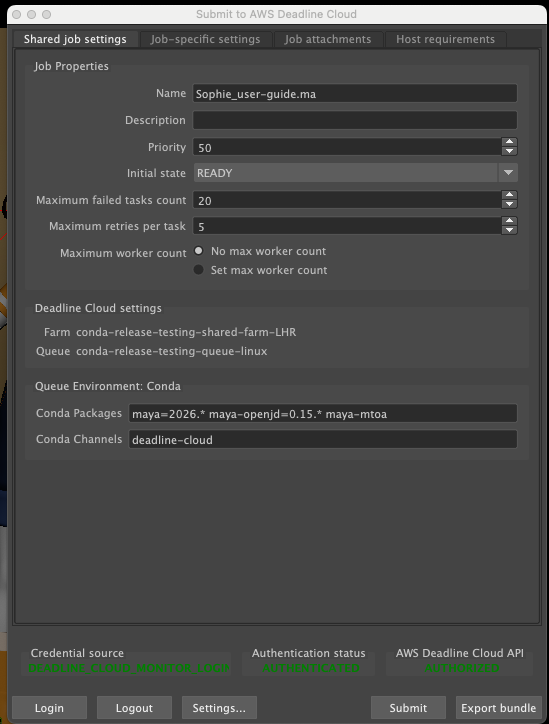
Settings that apply to the entire job:
- Farm Selection - Choose which farm your job will render on
- Queue Selection - Select the specific queue within your chosen farm
- Job Name - Give your render job a descriptive name
- Job Description - Add optional details about your render job
- Priority - Set job priority for queue management
- Initial State - Control whether the job starts immediately or remains paused
- Max Failed Tasks Count - Maximum number of tasks that can fail before the job is marked as failed
- Max Retries Per Task - Number of times a failed task will be retried
- Max Worker Count - Maximum number of workers that can work on this job simultaneously
- Conda Packages - Specify additional conda packages required for your render
- Conda Channels - Define custom conda channels for package installation
Maya Specific Settings

Settings specific to Maya rendering:
- Project Path - The Maya project path (automatically detected)
- Output Path - Directory where rendered images will be saved
- Output Filename - Base name for rendered image files
- Renderer - Select the renderer to use (Arnold, V-Ray, Redshift, or Maya Software)
- Cameras To Render - Select specific cameras or render all renderable cameras
- Override Frame Range - Optionally override the scene's frame range with custom values
- Render Layers - Select which render layers to render
Optional Tabs
Options to modify the scene during submission:
- Job Attachments (optional) - Select which files will be uploaded and attached to the job. Files are automatically detected and attached by default.
- Host Requirements (optional) - Allows you to specific which types of hosts will be eligible for picking up tasks for this job.
For information about the submitter tabs, see the AWS Deadline Cloud guide for using a submitter.
Monitoring your jobs
You can monitor job progress using the Deadline Cloud monitor. For more information, see the AWS Deadline Cloud guide for using the monitor.
Getting help
- Contact AWS Support
- For bugs, please log an issue to our github (Requires a GitHub account)