Render Jobs Using the Deadline Cloud for Nuke submitter
To use the Deadline Cloud for Nuke submitter, you will need:
- A profile to submit to Deadline Cloud with
- A Deadline Cloud farm and queue to submit to
Submit a job
To submit a render job from Nuke to Deadline Cloud
- Save your Nuke file.
- From the top navigation bar, choose AWS Deadline. From the drop down menu, select Submit to Deadline Cloud.
- Use the tabs in the dialog to customize your job.
- (Optional) To export a job's associated files to your job history directory without submitting it, choose Export bundle.
- A job bundle is a group of files that defines a job. For more information, see Open Job Description templates for Deadline Cloud.
- Choose Submit and follow the prompts to send your job to Deadline Cloud.
Nuke render-specific settings
The Job-specific settings tab has options specific to jobs created in Nuke.
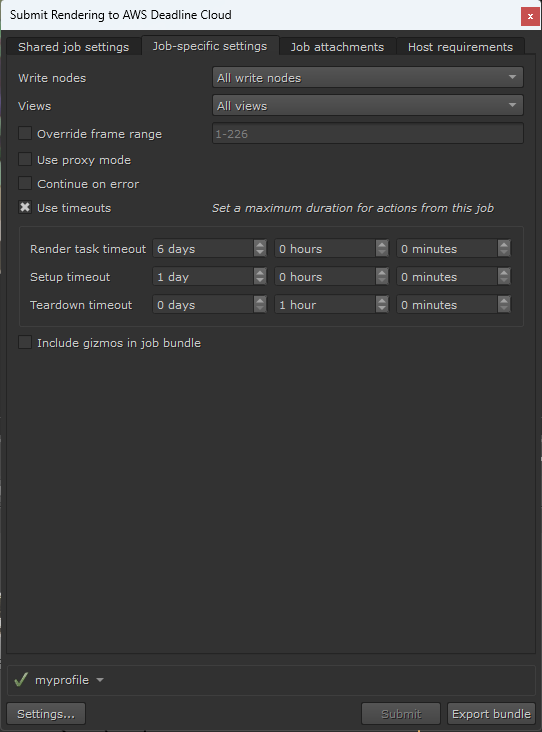
- Write nodes - Which write nodes to render outputs for. You can either select to render all write nodes, or select a specific node.
- Views - Which views should be rendered.
- Override frame range - Select this to render a different frame or frame range than is set in Nuke. Frame ranges follow the Open Job Description pattern.
- Use proxy mode - Manages whether to use proxy mode in the submitted job.
- Continue on error - If set, try to continue rendering if Nuke encounters an error. If false, in the case of an error the task is failed.
- Use timeouts - Whether or not to use user configured timeouts.
- Render task timeout - Maximum duration of each action which performs a render. Default is 6 days.
- Setup timeout - Maximum duration of each action which sets up the job for rendering, such as scene load. Default is 1 day.
- Teardown timeout - Maximum duration of action which tears down the setup required for rendering. Default is 1 hour.
- Include gizmos in job bundle - Whether or not to include gizmos in the job bundle.
For information about the other submitter tabs, see the AWS Deadline Cloud guide for using a submitter.